Building A Netflix Chrome Extension with ChatGPT
If you just want to download the extension and try it on your own browser and skip the how & why, you can jump to that part of the article here.
Why I Built This
Confession: I LOVE having something playing in the background when I’m doing repetitive work. And usually, it’s something that’s on Netflix.
Something I’ve always found annoying, however, is that extra step between seeing a show’s preview on Netflix and Googling it to see if it’s worth watching.
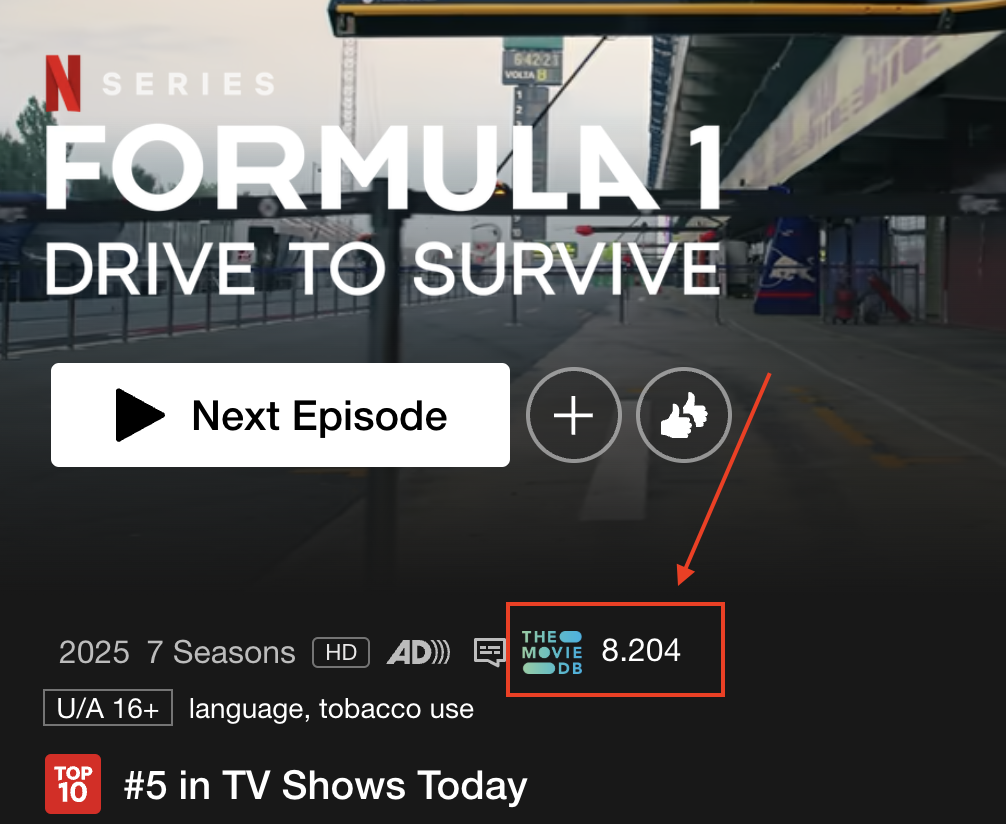
I wanted to build a way to see show ratings alongside the show description, so I could skip that extra step.
The idea isn’t new at all - Prime Video already shows IMDb ratings, for example. Netflix, however, doesn’t.
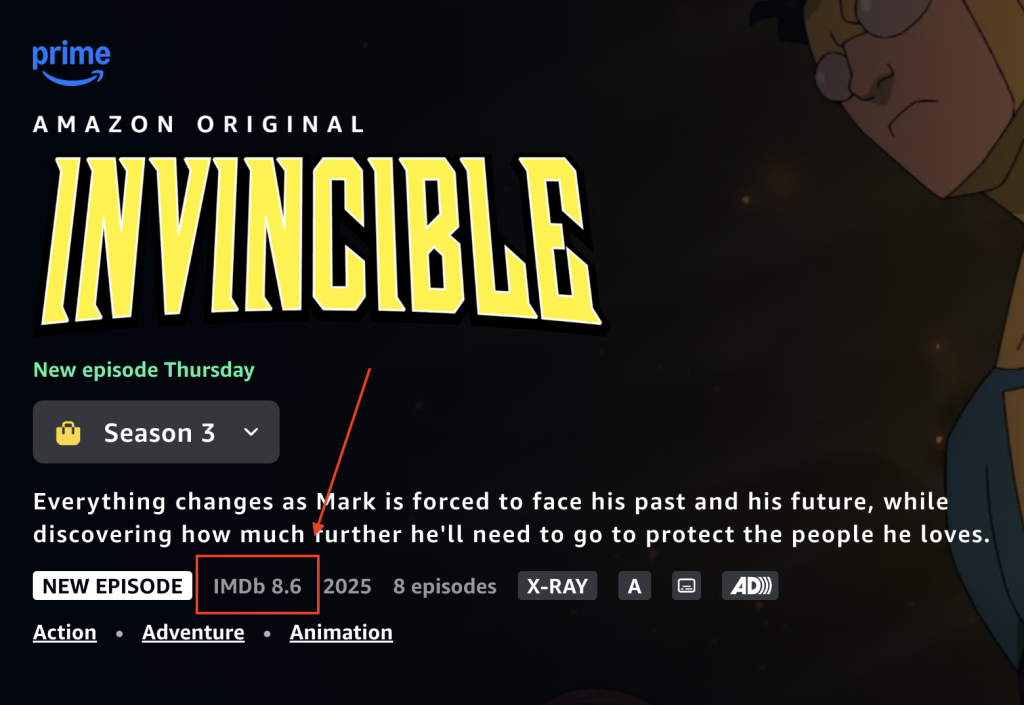
Prime Video
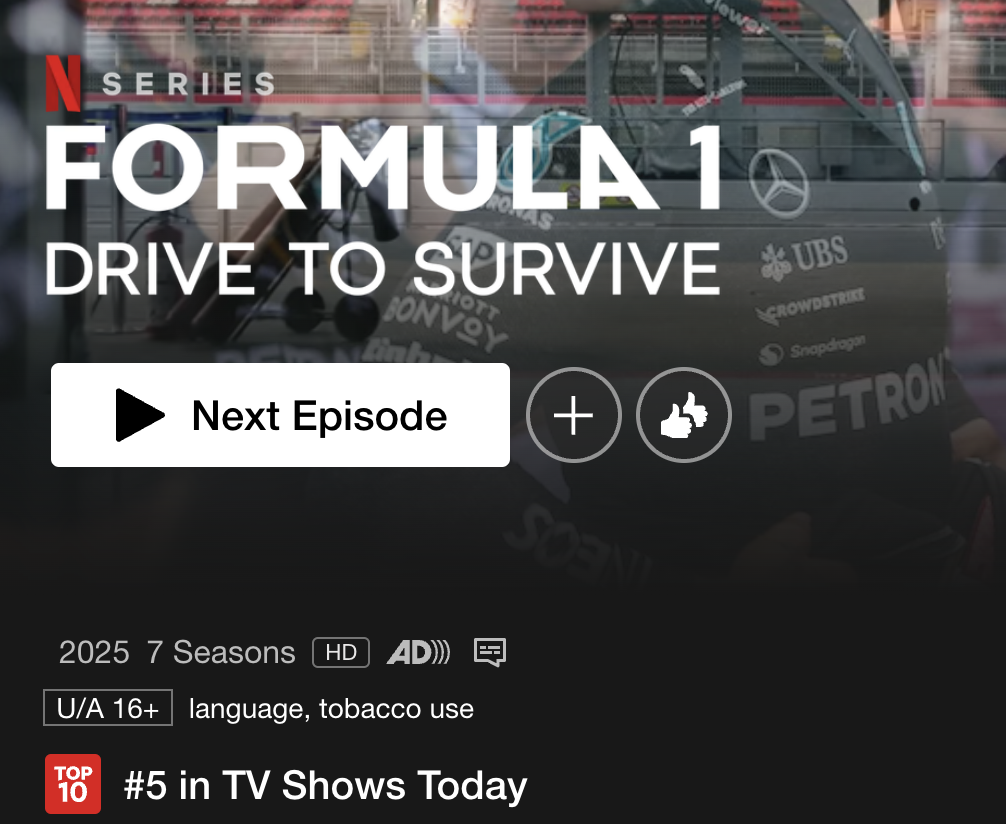
Netflix
I haven’t written much code outside of tutorials, quick scripts, and some data engineering work in the past few years, and I’ve never built a Chrome extension before. So, I decided to use ChatGPT as an assistant to help speed up the process.
I’d tried AI-assisted development quite early-on, back when Gemini was still Bard, to automate some DV360 work, and had serious issues with hallucination. But this time, I was blown away by how smooth the process was.
Yes, AI-assisted coding is not without its hurdles, and I do think one still need at least basic programming knowledge, but within a couple of hours, I had a working extension that I’ve been using regularly over the last month.
How I Built This
Step 1: Choosing The Right Approach:
Originally, I wanted to build a solution that would work across all Netflix devices (mobile, desktop, and TV).
But after some research, I realized:
-
Desktop was the easiest place to inject data via a browser extension.
-
Mobile and TV were significantly more complex, requiring hacky workarounds that weren’t worth the effort for an MVP.
So, a Chrome extension was the best starting point.
Step 2: Finding The Right Ratings API:
Since this was for personal use, I wanted an API that was either free or low-cost.
Figuring out where I could get ratings data without paying (or paying too much) for it since it’s only for personal use.
-
IMDb and Rotten Tomatoes were expensive or needed a separate approval process.
-
I narrowed it down to RPDB vs. TMDB. (I wish I could remember where I found those options, but I wasn’t intending on writing a blog post then. Next time, I’ll take notes 😉)
-
TMDB was free, so that’s what I went with.
Step 3: Learning How Chrome Extensions Work
Since I’d never built one before, ChatGPT was my go-to resource for figuring out the basics.
It broke things down into simple steps:
-
Every extension needs a manifest.json file (something I didn’t know before).
-
Content scripts allow injecting custom data into a website.
-
Background scripts can handle persistent tasks like API calls.
By following AI-generated boilerplate code, I had a basic extension scaffolded in no time.
Step 4: Writing the Code
Something I’ve always found painful is reading API documentation which isn’t always structured very well.
Even though TMDB’s documentation was easy to work with, leaning on ChatGPT to do the work made things a lot quicker here.
Step 4a: Work through the requirements iteratively, troubleshooting errors and fixing bugs as we go. We ran into a few issues here:
-
ChatGPT’s assumptions on file structure needing correction
-
Response and request handling needing refinement
-
Swapping approaches a couple of times to find one that worked (e.g. using chrome.storage instead of sendResponse to better deal with async behaviour and prevent race conditions) - again, something I had no idea about until ChatGPT told me the difference
-
Figuring out DOM issues. Since I was getting media detail almost entirely by scraping the front-end, ChatGPT needed to see the entire DOM, but there are sections that are dynamically loaded, and there are context window limitations to consider
-
ChatGPT overwriting the entire canvas a couple of times taking some frantic ’Ctrl-Z’ing on VS Code (learnings in a separate section below)
-
Visual issues - the rating being inserted into the DOM often overwrote the content on the site. This took the longest to fix, and I eventually ended up giving up and writing the CSS myself.
Step 5: Expanding Functionality
Expand on the extension and have it work for TV shows. There isn’t a direct way to detect this from the page URL, so using keywords (like ‘seasons’) from the front-end.
Step 6: Accounting for Dynamic Page Loading
When jumping between series/shows, Netflix loads pages dynamically, meaning that the page doesn’t reload. I had to set up polling to check the URL every couple of seconds to know when to trigger another API call.
Step 7: Handling Edge Cases
Clean up edge cases. This involved dealing with things like:
-
Netflix using a couple of different types of URL formats when viewing ‘detail’ pages needing conditionals to handle these differently.
-
There are movies and TV shows with the same name released in different years in different languages.
-
TMDB also treats some ‘Limited Series’ as movies and others as TV shows, so having a conditional to check across all options.
Step 8: Finalising And Uploading to the Chrome Store
I had to make one final improvement:
- Changing settings so users had to enter their own TMDB API key instead of using a hardcoded one.
And then I uploaded to the Chrome store and sent if off for review.
(It’s still pending approval, so for now, I’m just using a manually uploaded zip file on my browser. Instructions on how you can use this for yourself below, if you’re interested)
Learnings
Here are some things I learnt building out this Chrome extension that I think are useful takeaways for AI-assisted development in general.
-
Use instructions to force ChatGPT to be more opinionated/assertive. ChatGPT is generally prone to agree with the user and does not naturally suggest alternatives, so forcing it to consider alternatives and to push back when necessary makes it a generally more productive experience.
-
Use Git (or another version control system). I could have saved myself a lot of headache (and frantic undo-ing) if I had set up version control at the start of the project. ChatGPT is prone to overwriting code that does not need to be overwritten, often breaking dependencies. Having a version control system would help solve such pain points.
-
Manage and be aware of context window issues. Somewhere around Step 6, I assume ChatGPT ran out of its context window because it started going around in circles, wiping out large swathes of code, but also beginning to ‘lie’ saying that it had updated certain blocks of code, or added certain functions when it clearly hadn’t. When called out on it, it would apologise, but also continue to do the same thing. Starting a new chat solved context window issues, but ChatGPT needed to be re-briefed.
-
Use the Projects feature on ChatGPT. I assumed (incorrectly!) that this extension would be a quick build, so I did not foresee the use of the projects feature while allows uploading code files for context. Loading specific files in and out would also mean that you’re able to manage context window issues.
-
Do not assume that ChatGPT’s approach to solving a certain problem is the best because it often takes a more complicated approach than necessary. Having it talk through alternatives helps a little here, but I think this is where some programming expertise and in certain cases domain knowledge, would be helpful.
-
Have ChatGPT wait until you give it an explicit instruction to write code so you don’t end up with a bunch of useless code clogging up the context window. If you’re like me, you treat ChatGPT like… a chat. Having it begin to write code too early, means that you have code that doesn’t really do everything you need it to because it was generated partway through a conversation.
-
Prompt ‘engineering’ is overrated for simple use-cases like this one. I’ve read (and tried) a bunch of different detailed prompts that would put scientific research papers to shame, but through this entire project, I used no special prompting style, no formatting, and no roleplaying. As long as you’re clear with you instructions and tell it what output you require, I find that ChatGPT (I used 4o) is smart enough to figure out what you’re after. And if you/it get it wrong, it’s only a chat so it’s not hard to go back and fix it.
-
Finally… next time, I’m writing the blog post while I’m building the extension so I don’t have to read through old chats! In all fairness, however, I didn’t intend for this to become a blog/Linkedin post when I first built the extension.
How To Use The Extension
-
Download this zip file and unzip it.
-
Go to chrome://extensions
-
Enable Developer Mode on the top-right corner
-
Click ‘Load Unpacked’ and select the unzipped folder
-
Navigate to Netflix, view the details page of any show/movie and see if it works.
Disclaimer: There are a couple of shows/movies that it doesn’t seem to work for even if TMDB itself has information, but I haven’t spent too long troubleshooting it since I’m building something else now (another post incoming soon!)
Note: The API key is hard-coded for the purpose of this demo, so you won’t have to worry about creating one or authenticating it.